
Prices and reports
Set the internal price your organization's own keys are metered at, per model or as a discount, and read what your keys served, what fell back and what reached your credit.
Internal prices
Every model your keys serve has an internal price. It is the price Tokamak meters those requests at, so that analytics, Insights, budgets and your own chargeback show what the work cost your organization. Tokamak charges nothing for them.
Open Providers › Models & prices. You need org.models.manage, which owners and admins have. The table lists every model your keys serve:
- Served by: which of your keys serves it.
- Tokamak list: Tokamak's price per million input and output tokens, with the cache lines below.
- Your internal price: what your keys' requests are metered at.
- Source: List price, a discount, or custom rates.
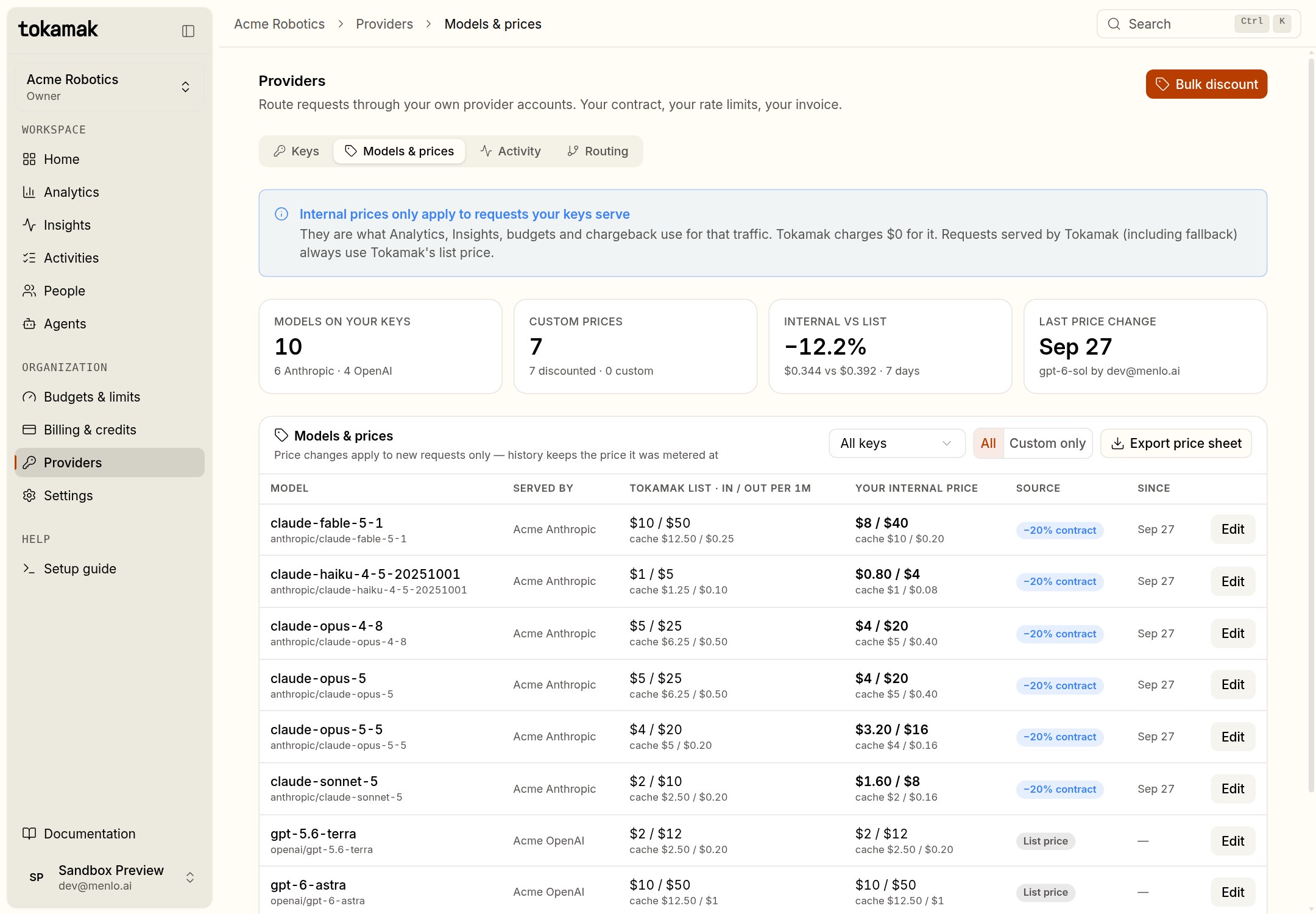
Change a price
Choose Edit on a model. There are three sources:
| Source | What it stores | Use it for |
|---|---|---|
| Tokamak list | No price of its own. It follows Tokamak's list, including future changes | The default |
| Discount % | The discount, applied to every line and stored as exact per-line prices | A committed-spend or volume discount |
| Custom rates | Your own input, output, cache-write and cache-read rates per million tokens | A negotiated rate card |
The preview shows what the new price would have made the last seven days of this model's traffic cost. Charged by Tokamak stays $0. Budgets affected lists the budgets with a cost limit that count this model's key-served requests, since a new price changes how fast they fill.
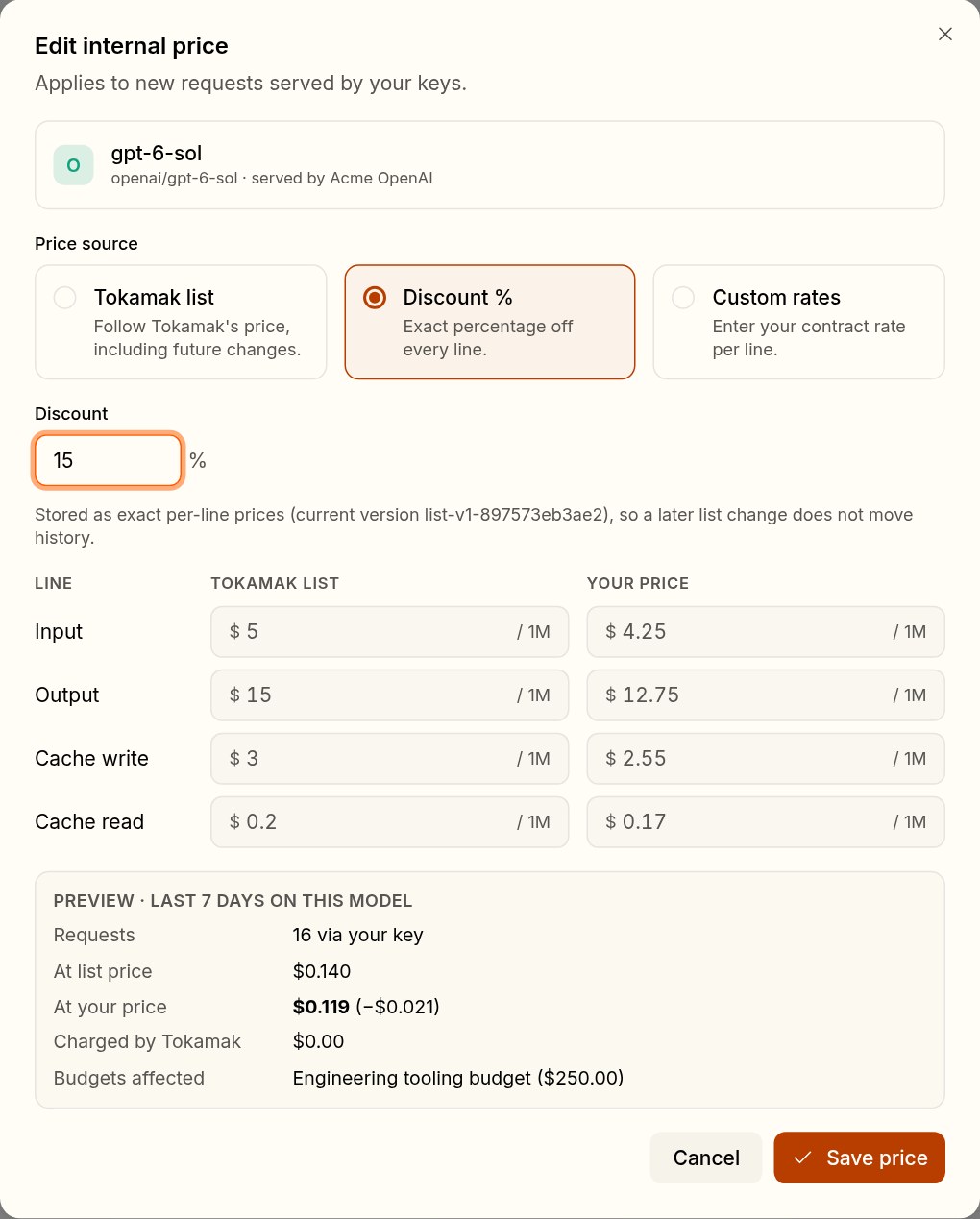
A price change is a new version:
- It applies to new requests only. Every request keeps the price it was metered at, so a later change never rewrites history.
- A discount is stored as exact prices, so a later change to Tokamak's list does not move it. To follow the list again, choose Tokamak list.
- Bulk discount applies one discount to every model a provider's keys serve, such as your Anthropic contract.
- Export price sheet downloads the table as a CSV file.
Reports
Everyone who reads usage sees the effect of your keys. Figures are over the window you choose.
Analytics › Credential source
In Analytics, switch to Credential source at organization scope. You need the organization admin or billing-view permission. It splits usage cost by who served it:
- your keys, at your internal price;
- Tokamak, at list price;
- fallback, at list price.
The tiles show the usage cost, the amount charged by Tokamak, your keys' share of requests and the fallback rate.
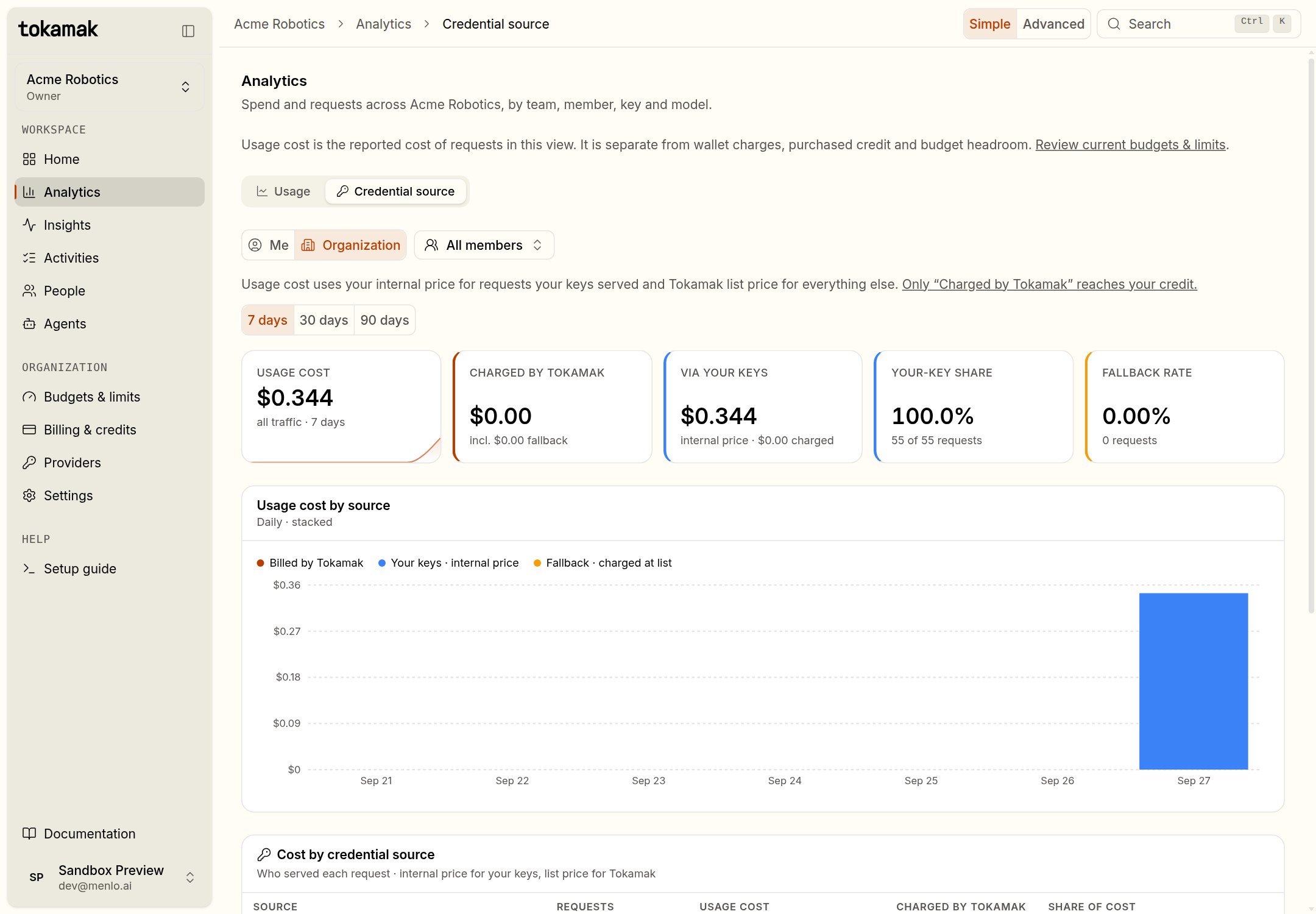
The Usage view of Analytics, and Insights, keep working as before. They count a key-served request at its internal price.
Billing & credits
Billing & credits shows what reached your credit over the last 30 days, by source. Requests your keys served are listed as Not charged. The Platform fee on your keys row shows the fee on those requests: 0%, so $0.00. Tokamak does not charge a fee on requests your keys serve.
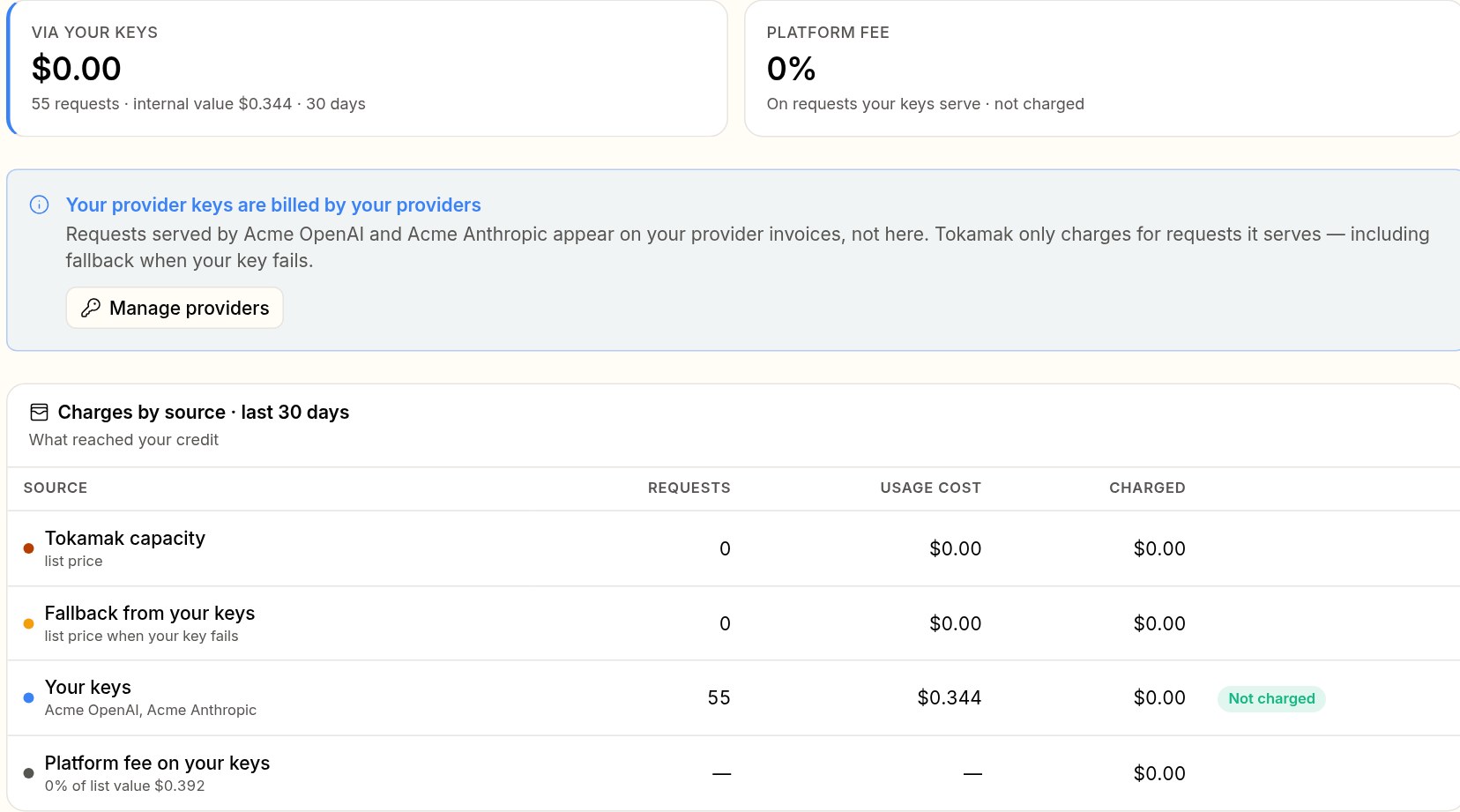
Budgets & limits
By default a budget counts key-served requests at their internal price, so a team's budget still holds when its requests run on your key. Budgets & limits says so while BYOK is on.
Each budget chooses, under Requests served by your own provider keys:
- Include your-key traffic (the default): key-served requests count against the budget and are refused once it is spent, like any other request.
- Only Tokamak-charged spend: the budget caps what reaches your credit. Requests your keys serve are neither counted nor limited by it; fallback requests, which Tokamak charges, still are.

A budget that counts your keys shows its spend split by source under Usage cost / budget:
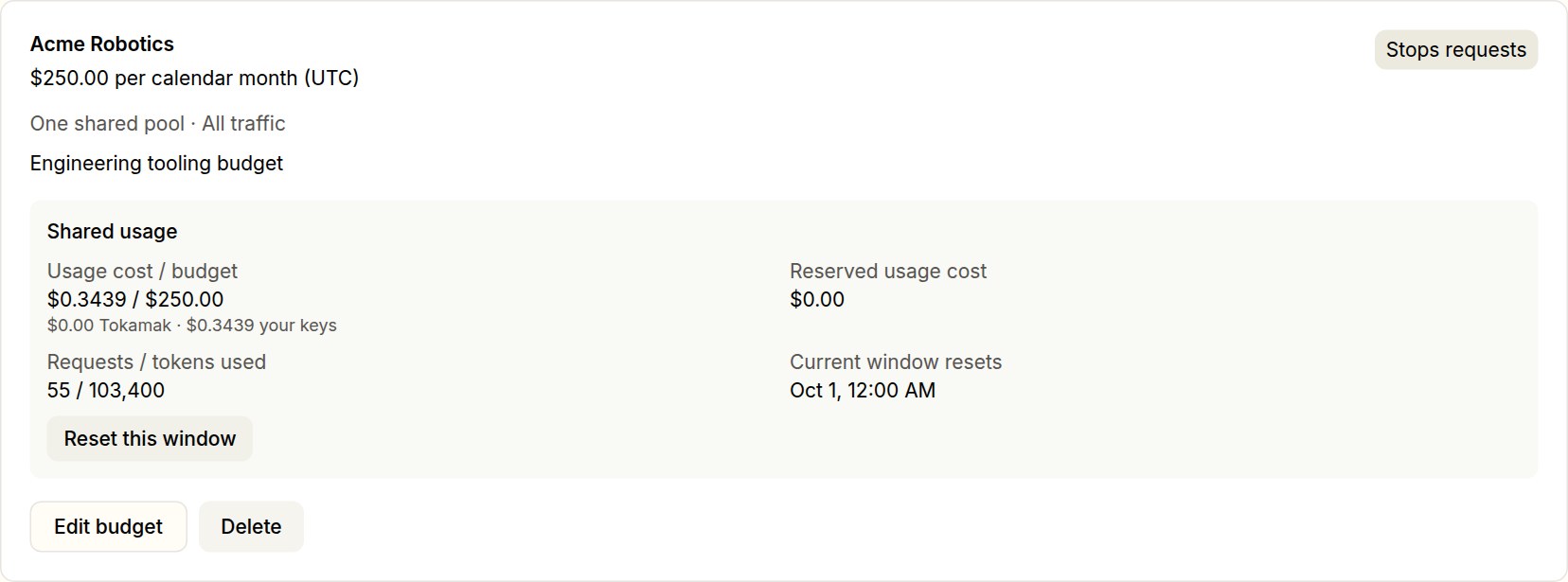
A budget that leaves your keys out reads Tokamak-charged spend only.
Insights
At organization scope, Insights opens with your keys' share of metered requests and a Your-key share by member table: each member's requests, metered cost and the share their keys served. Cost uses your internal price for key-served requests.

Providers › Activity
The Activity tab lists every key's events: created, tested, rotated, disabled and automatically disabled. It also shows the usage split for your keys.
Set up your keys
From zero to one. Your platform administrator switches BYOK on; you add a provider key, keep the template's models, choose routing and a starting price, and your members' requests start running on your account.
When a key fails
What happens to a request when your provider rejects your key, refuses a model, rate-limits you or is down; how a failed key is disabled and falls back; and how to rotate it.