
Workspace tour
Know which organization you are using and where each customer task belongs.
Home answers where do I stand right now? for every member: your tightest budget (or, for an owner who can see billing, the organization's wallet runway), hours worked and live sessions this week, what needs you, your day so far and a 90-day rhythm; team owners and admins also see their team's usage. Without Insights, spend and request tiles replace the session ones. Nothing on Home is a report: totals live in Analytics. The organization selector and page header identify the workspace you are viewing. Check them before changing membership, budgets or credit.
Find your task
| Navigation | Use it for |
|---|---|
| Home | Where you stand today: budget or wallet runway, hours and live sessions, what needs you, today's sessions and digest, your team's usage when you lead one, and your working rhythm. |
| Analytics | Overview, Costs, Reliability and Requests for an allowed audience: you, a team or the organization; Advanced adds Breakdown, Value, Leaderboard, Efficiency, Tools and Budgets & policies. |
| Insights | For organization owners and admins, once a platform administrator has switched the organization's Insights feature on: who is coding now and when your teams work. See Insights. |
| Activities | Same audience and switch: every coding session in the selected range, newest first. |
| People | Teams first (a Structure tree or a Flat list), then Members and administrator Invitations. Expand a team to see every member with the usage attributed to that team; administrators add, re-role, move or remove members there. |
| Agents | Your organization's agents: service accounts with their own API keys, owner and usage. A second tab groups usage by the agent type people assigned to their own keys: Claude Code, Codex, OpenCode, a Custom name or Unassigned. |
| Budgets & limits | Under Organization: the limits that apply to your requests or, with limit-management permission, the organization's budgets. |
| Billing & credits | Under Organization: the organization's credit, purchases, receipts, saved cards and auto top-up. |
| Providers | Under Organization, when your organization uses bring your own key: owners and admins manage its own Anthropic and OpenAI keys, their models and internal prices; other members see which models those keys serve. |
| Settings | Under Organization, for administrators: auto-enrollment email domains and GitHub delivery evidence, data capture and monthly reports. |
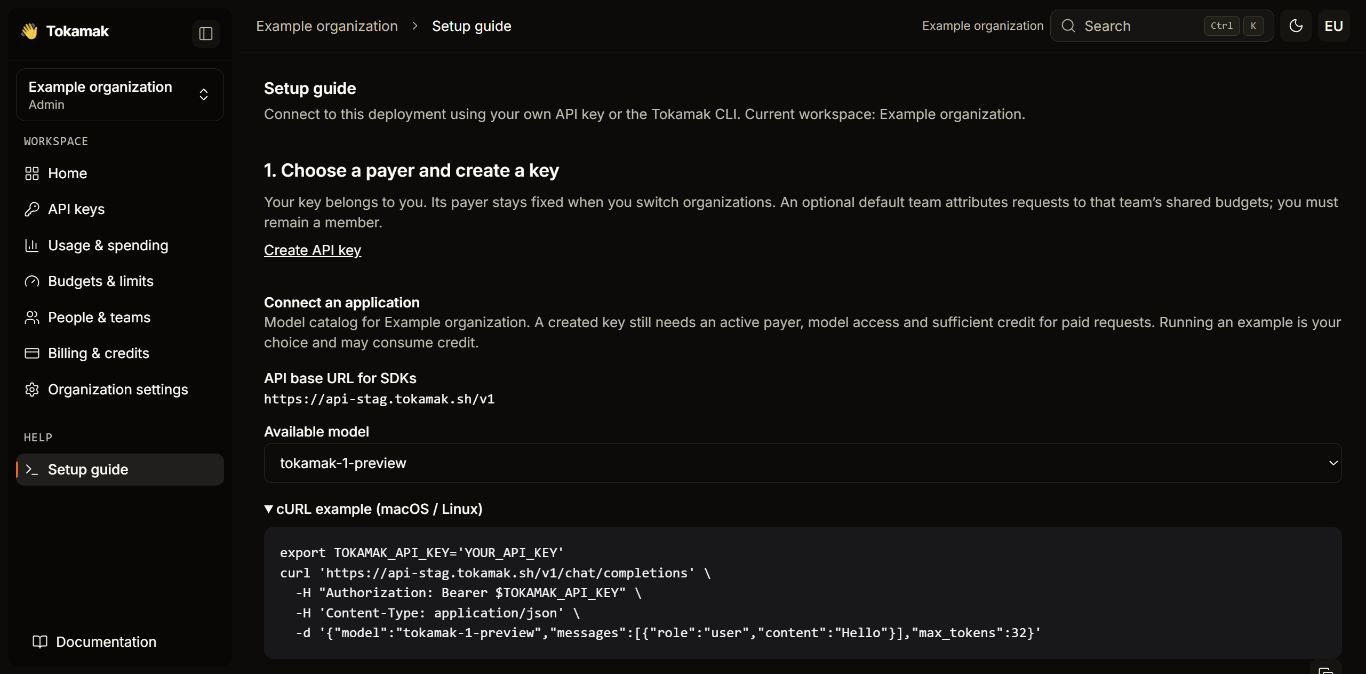
| Setup guide | This deployment's API endpoint, connection examples and coding-tool setup. |
Navigation follows your permissions. A member can read the organization roster without being able to invite people or change roles. Billing administrators can manage credit and budgets without gaining general access to the member directory or organization settings. A team's owners and admins can create and run that team's agents; organization agents belong to organization owners and admins. Your own pages are in the account menu at the foot of the sidebar: Profile, API keys and Preferences. They are the same in every organization you belong to, so they sit outside the organization's navigation, and their page header names you rather than the organization. Usage figures in People and the organization scope in Agents need organization usage authority; without it those cells read as unavailable rather than zero.
Organization context
Use the organization selector to switch or create an organization. The destination has its own members, budgets and credit. Switching the browser does not move existing keys: their billing organization and default-team attribution remain fixed.
A link saved for a different organization may ask you to correct the workspace before displaying usage. This avoids presenting one organization's figures under another organization's name.
Home and setup
Until every step is done or you dismiss it, Home shows a Finish setting up checklist: make your first request, launch a coding tool through Tokamak (when your organization has Insights on), see which budgets apply to you and, for owners, set a budget and invite teammates. A created key is not proof that an application has connected. Complete a request, then inspect its usage.
Home's usage periods are UTC calendar days, and its Analytics link opens the same organization. Usage cost, current budgets and organization credit answer different questions; they are not interchangeable balances. Current policies do not prove which decisions applied to a historical request.
Keyboard and mobile
The Simple / Advanced switch in the header changes how much detail pages show. Advanced adds previous-period comparisons, cost per request, share of organization cost and a detail panel beside the table on wide screens or below it on laptops. It is remembered for your browser and never changes what you are allowed to see. Work progress, current sessions and session-hours read Not reported until a work-reporting source is connected; they are not inferred from API traffic.
Use Ctrl+K or Command+K to search pages and available creation actions. Creation commands include organizations, teams, invitations, keys and budgets when permitted. On a wide screen the sidebar collapses to icons from its toggle button or Ctrl+B / Command+B, and the navigation bar's toggle opens it again; on narrow screens it becomes a drawer. Wide analytical tables can scroll within their own panel.
Continue with Quick start, Organizations and teams or Budgets and limits.