
Set up your keys
From zero to one. Your platform administrator switches BYOK on; you add a provider key, keep the template's models, choose routing and a starting price, and your members' requests start running on your account.
This page follows one organization, Acme Robotics, from no keys to Claude Code and Codex running on its own Anthropic and OpenAI accounts. The screenshots come from a test deployment with a fake provider; the organization, names and figures are examples.
1. BYOK is switched on for your organization
BYOK is off for every organization until a platform administrator switches it on. They do that in the admin console, on the organization's BYOK tab. On the same tab they choose whether a failed key may fall back to Tokamak and which providers your organization may add. See Bring your own key (platform).
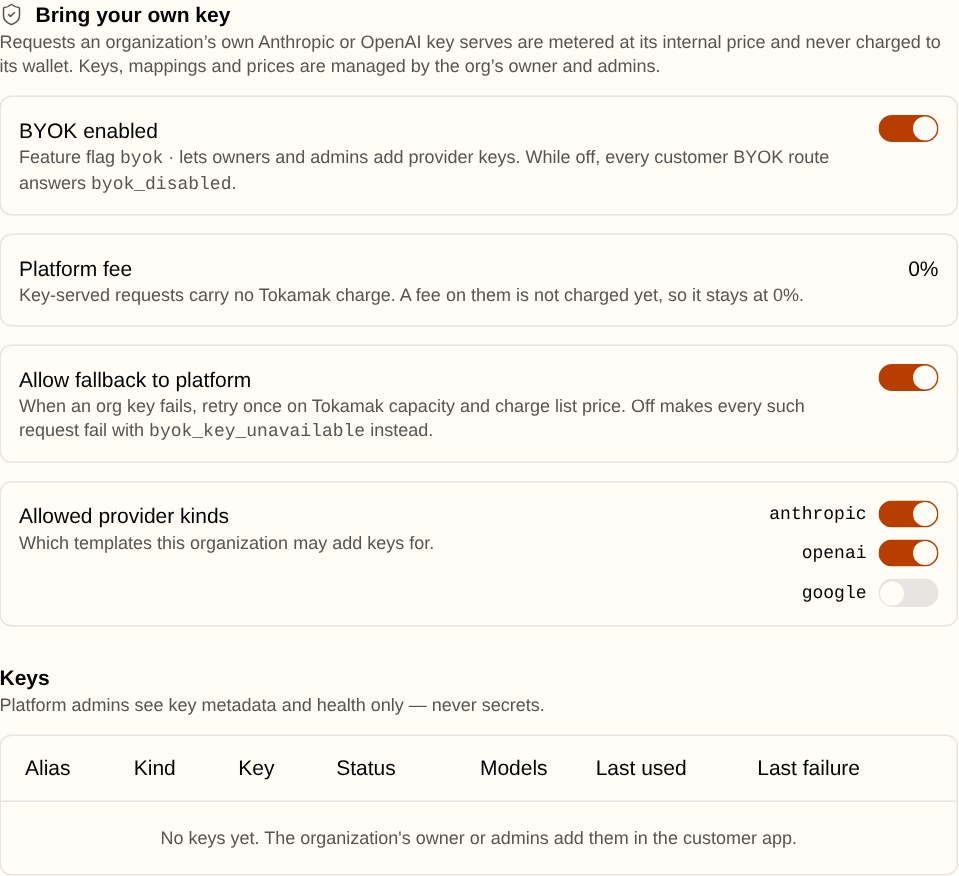
While BYOK is off, Providers is not in the sidebar, and the provider-key API answers 403 byok_disabled.
2. Open Providers
In the app, open Organization › Providers. You need the org.providers.manage permission, which owners and admins have. The empty page explains the three steps and lists the providers you may add.
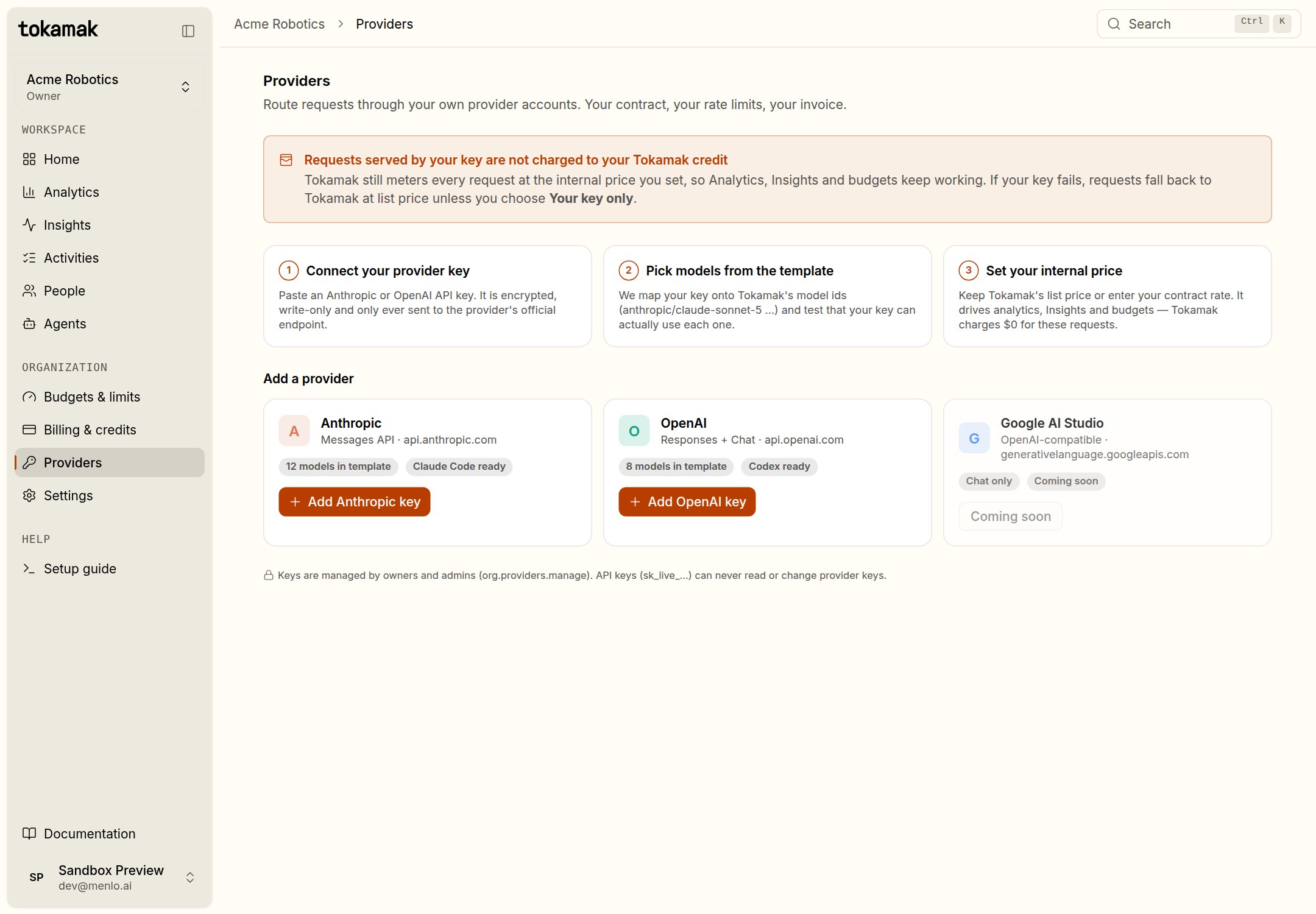
3. Add a key
Choose Add Anthropic key, or Add OpenAI key. The sheet has four steps.
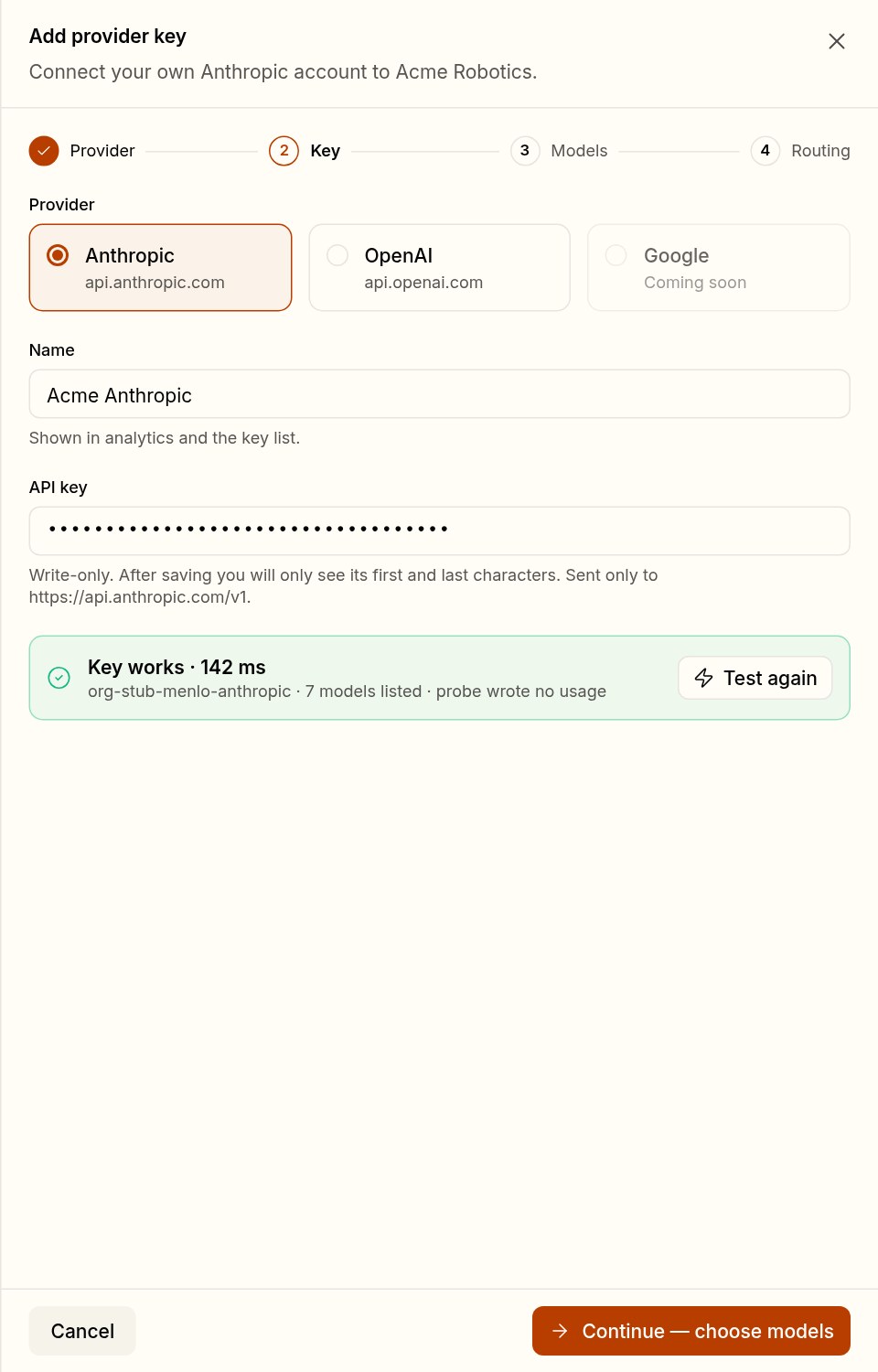
Provider and key
- Give the key a name. Analytics, the key list and billing show it, for example "Acme Anthropic".
- Paste the API key from your provider's console.
- Choose Test. Tokamak lists your account's models with the key. The test is free: it writes no usage and generates no tokens.
A key the provider rejects is not saved. The sheet shows the provider's answer instead.
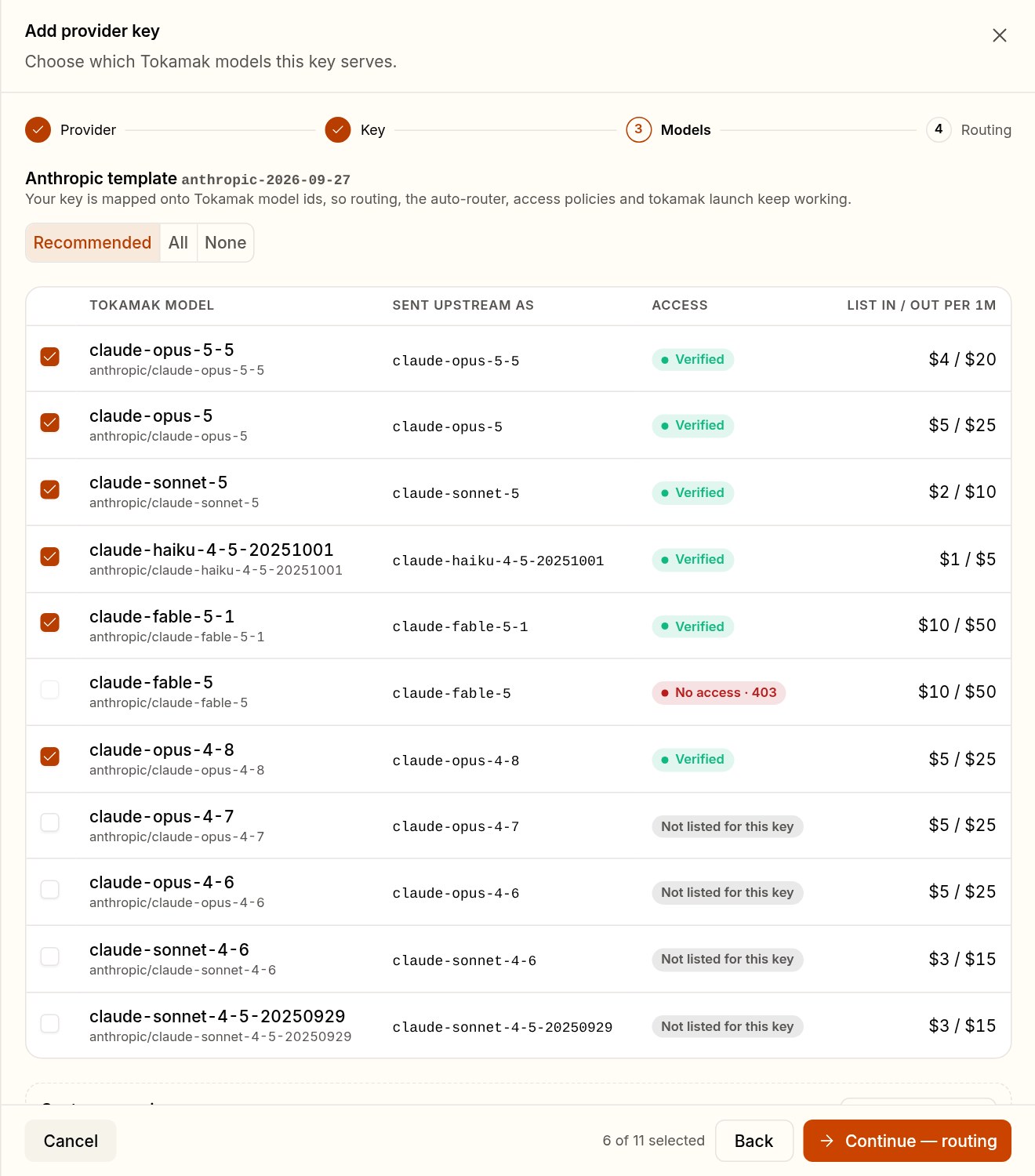
Models: the template
Your key does not change your model ids. Tokamak maps it onto its own ids with a template: anthropic/claude-sonnet-5 in your tool becomes claude-sonnet-5 at Anthropic. Everything that knows Tokamak ids keeps working, including routing, auto routing and tokamak launch.
The template checks every model against your key:
| Access | Meaning |
|---|---|
| Verified | Your account lists the model, and a free check passed |
| No access · 403 | Your provider refuses this model for your account, for example because your plan does not include it. It stays off |
| Not listed for this key | Your account does not list it. Off by default; you can still switch it on |
Recommended selects the verified models that the template recommends. All and None do what they say. A model you leave off is served by Tokamak, as before.
A custom mapping
Add mapping sends a Tokamak model to an upstream id the template does not use, such as a pinned snapshot. Your tools keep calling the Tokamak id; only what reaches your provider changes. A custom row for a model the template already maps replaces the template's row.

- The Tokamak id must be in the catalog and belong to the key's provider:
anthropic/…for an Anthropic key,openai/…for an OpenAI key. - The upstream id is sent as you type it, so it cannot contain spaces.
- Tokamak does not check a custom upstream id when you save it, so the mapping shows Unverified until the daily check probes it. If your provider answers that the model does not exist, on a request or in the daily check, that mapping is switched off and marked Not listed for this key; the key and its other models keep serving.
To add a mapping to a key you already saved, open the key and choose Add mapping under its models.
Routing and a starting price
- When this key can't serve a request. Fall back to Tokamak (the default) retries once on Tokamak capacity at list price. Always use this key never falls back for this provider: a rejected or disabled key answers
503, and any other provider error reaches your tool as sent. See When a key fails. - Priority. When several keys serve the same model, the lowest number is tried first.
- Internal price. Start at Tokamak list price, or apply a discount on list price to every model of this provider, such as a committed-spend discount. You can change the price per model later; see Prices and reports.
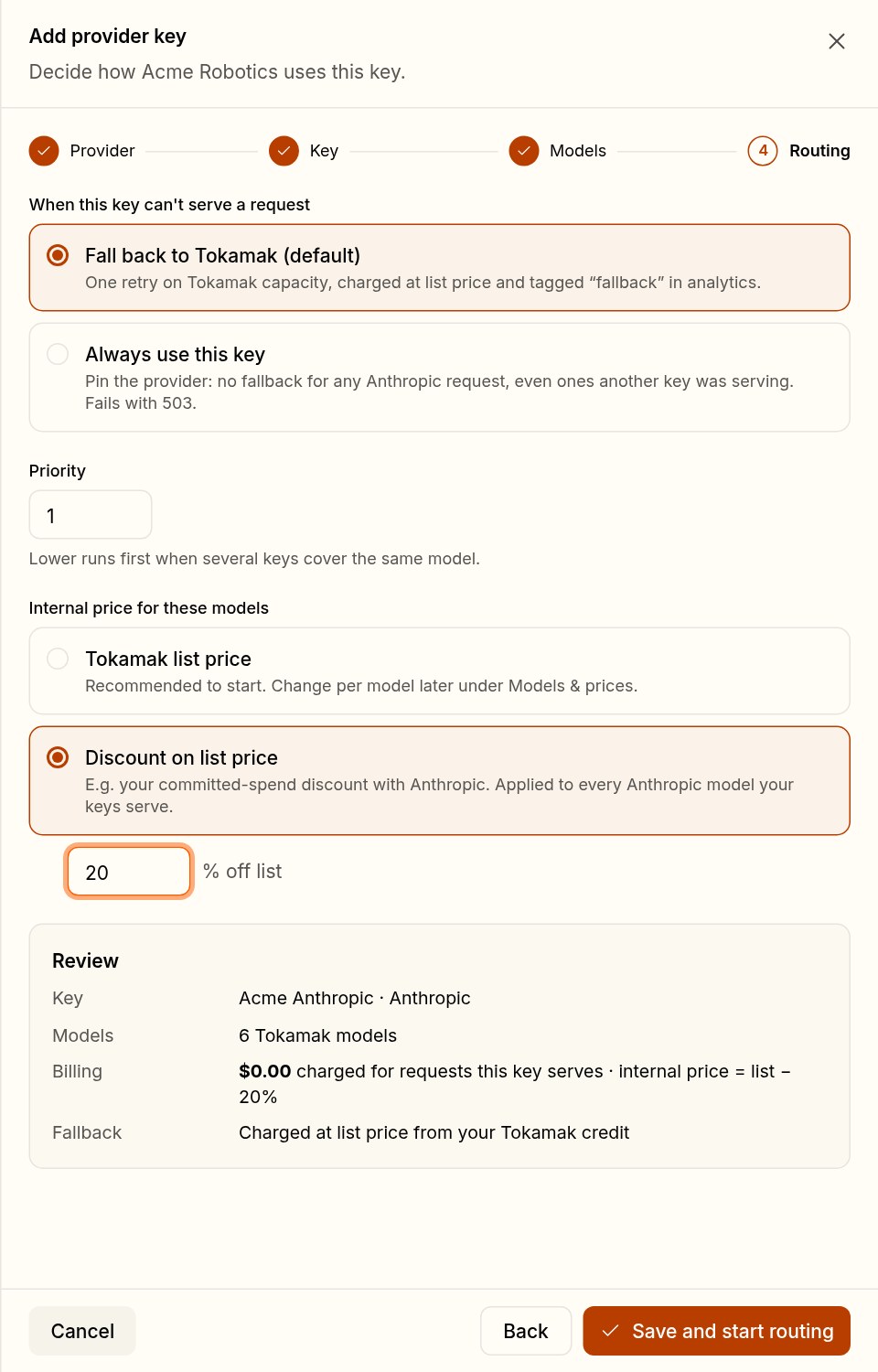
Choose Save and start routing. Requests for the key's models run on your account from then on; for your organization's first key, allow up to 15 seconds.
4. Check the key list
Providers now shows your keys. The tiles count the last seven days:
- Via your keys: the requests your keys served.
- Internal cost: what those requests cost at your prices, next to their list value.
- Charged by Tokamak: always $0 for your keys' traffic.
- Fallback requests: requests a failed key handed to Tokamak.
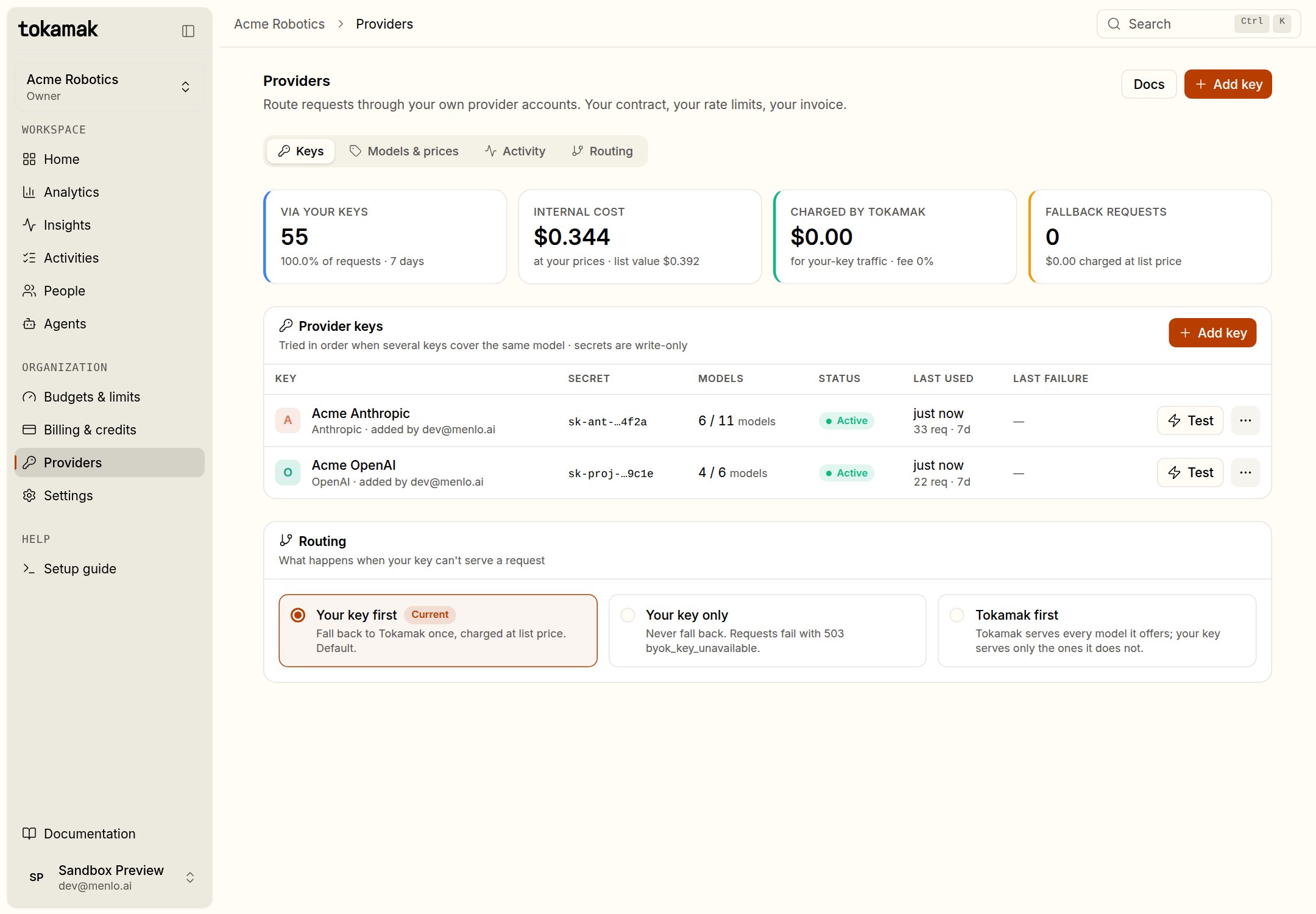
Each row's Test checks the key again. The ⋯ menu can rotate, disable, enable or delete a key. Select a row to see its models and events.
The key's detail also shows:
- Secret: the masked secret and when it was last rotated.
- Key fingerprint: a short hash of the stored secret, never the secret. It changes when you rotate the key, so you can tell which secret is in use without seeing it.
- New models available: when Tokamak's template for the provider gains a model that is in the catalog and not yet on your key, Add maps those models in one step. They are checked against your key like the rest.
Tokamak also re-checks every active key once a day, free of charge: a key its provider now rejects is disabled, and a model your account can no longer use stops serving from the key. See When a key fails.
5. Choose the organization's routing
The Routing card applies to every key:
| Choice | When your key can't serve a request |
|---|---|
| Your key first (default) | Tokamak serves it once, charged at list price and tagged as fallback |
| Your key only | The request fails: a rejected or disabled key answers 503 byok_key_unavailable, any other provider error reaches your tool as sent. Nothing is charged |
| Tokamak first | Tokamak serves every model it offers; your keys serve only models Tokamak does not offer |
A key set to Always use this key never falls back, whatever this card says. If your platform administrator switched fallback off, no key falls back.
6. Your members change nothing
Members keep their Tokamak API keys, their tools and their commands. The model ids stay the same.
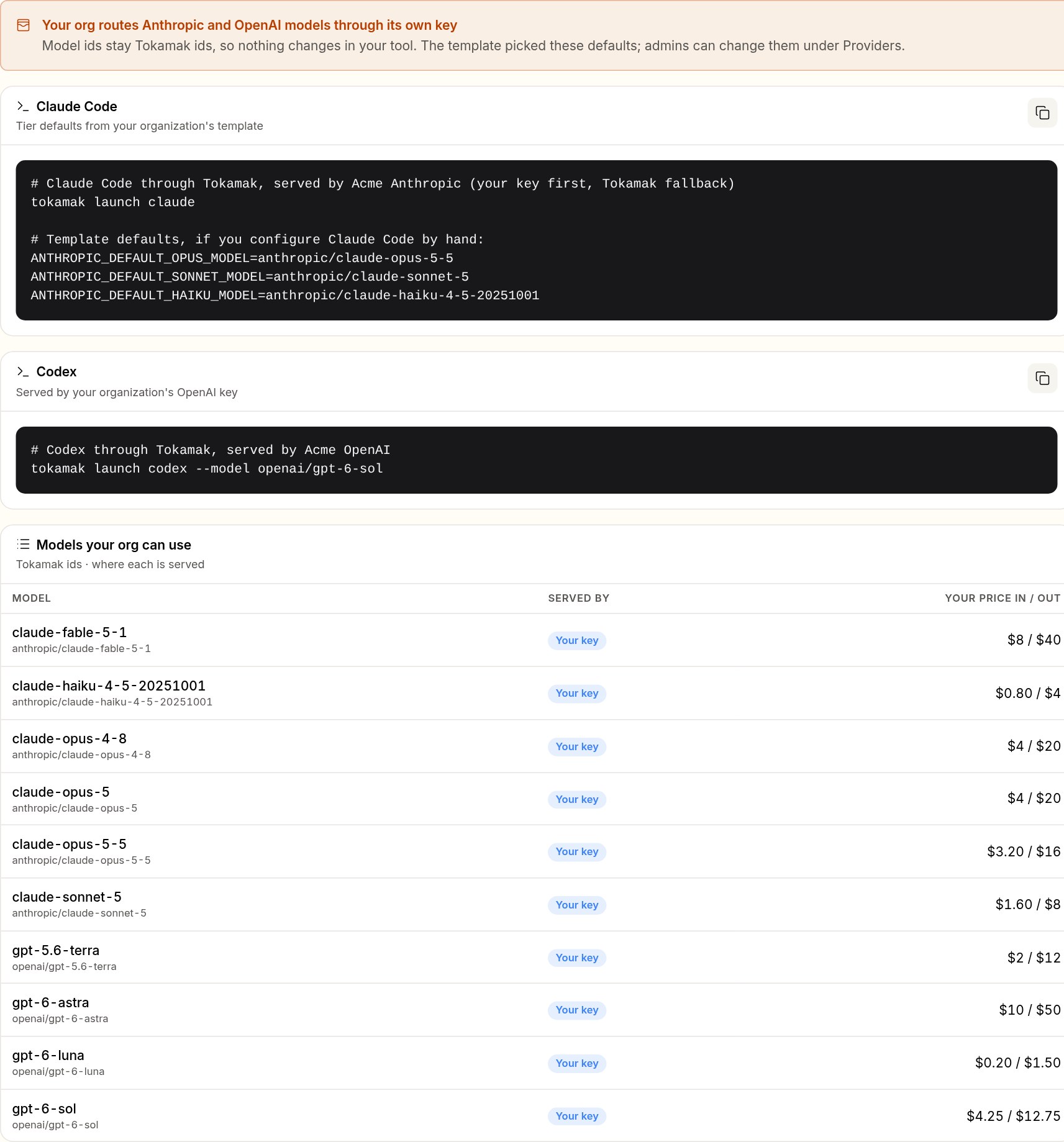
- Claude Code — run
tokamak launch claudeas before. The template's defaults show which Anthropic model backs each Claude Code tier. - Codex — run
tokamak launch codexas before. The Setup guide shows the command with the template's default model. - SDKs and scripts — no change.
GET /v1/modelsalso lists models that only your key serves.
The Setup guide shows every member which models your organization's key serves, and at what price. Members without org.providers.manage also see Providers, as a read-only list of those models. A model marked Tokamak (fallback) runs on Tokamak's capacity when your key cannot serve it. Unavailable means it would fail instead: your key only, a key set to Always use this key, fallback switched off, or a model that only your key serves.
Bring your own key
Route your organization's Anthropic and OpenAI traffic through your own provider accounts. Tokamak still meters every request at a price you set, and charges nothing for what your keys serve.
Prices and reports
Set the internal price your organization's own keys are metered at, per model or as a discount, and read what your keys served, what fell back and what reached your credit.