
Verified domains and single sign-on
Prove your organization owns its email domain, let colleagues join automatically, and sign them in with your own identity provider (OIDC or SAML), optionally required.
Your organization's owners and admins (org.admin) can do three things under Organization › Settings, each building on the one before:
- Verify a domain: prove with a DNS record that you control an email domain, such as
example.com. - Auto-join: let anyone who signs in with a confirmed address on a verified domain become a member automatically.
- Single sign-on: sign those people in with your own identity provider (Okta, Microsoft Entra ID, Google Workspace, Keycloak, or any OIDC or SAML 2.0 provider), and optionally make it the only way in.
Personal accounts cannot claim domains. Switch to a shared organization first.
Verify a domain
- Under Verified domains, enter the domain and select Add domain. You can also paste an address such as
[email protected]; Tokamak keeps only the domain. - Add the TXT record shown at your DNS provider. Its name is
_tokamak-verification.<your domain>and its value istokamak-domain-verification=followed by a token unique to your organization. A TXT record with the same value on the domain itself also works. - Select Verify. DNS changes can take a few minutes to become visible. Until the record is found, the domain stays Pending verification and the last check is shown under the record.
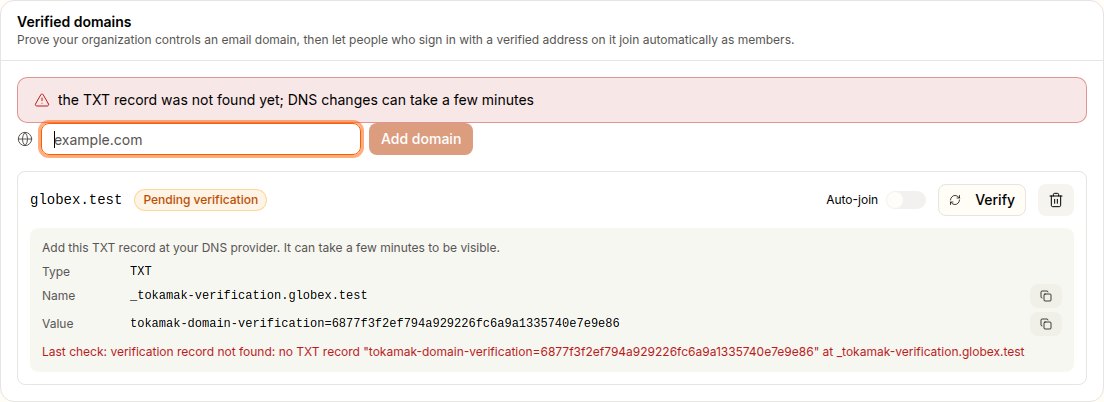
Some domains are refused:
- Public mailbox providers such as
gmail.com,outlook.comoricloud.com. Nobody can prove control of them. - A domain another organization has already verified. A domain belongs to one organization at a time. If you believe you own a domain someone else verified, contact Tokamak support.

Keeping a domain verified
Tokamak checks the record again about once a day. If it goes missing, the domain shows Record missing. If it is still missing three days later, the domain returns to pending and auto-join stops. Check again runs the check immediately, and a failed manual check counts toward the same three days. Keep the TXT record in place for as long as you want the domain verified.
Removing a domain, losing its verification or turning auto-join off never removes anyone. Remove members from the People page.
Let colleagues join automatically
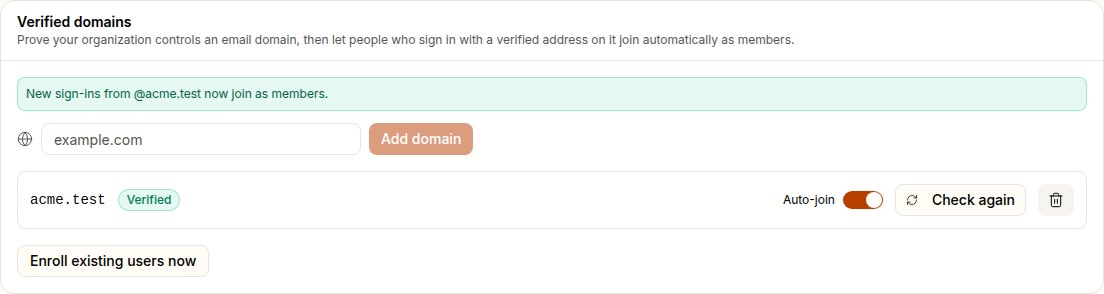
Turn on Auto-join for a verified domain. From then on, anyone who signs in with a confirmed address on it becomes a member of your organization, alongside their own personal account. Existing members keep their roles. Enroll existing users now adds people who already have a Tokamak account on that domain.
The next time a colleague signs in, they see your organization next to their personal account:
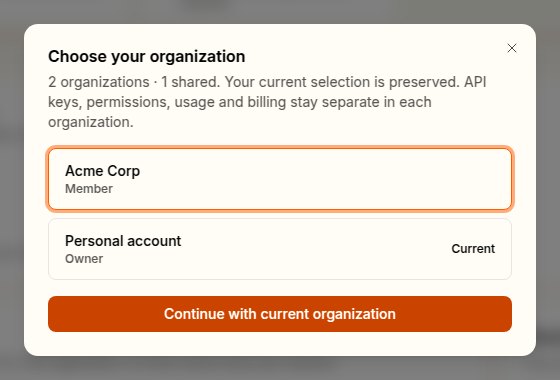
Only addresses the sign-in method has confirmed count. An unconfirmed address, a subdomain (eu.example.com is not example.com) or an archived organization never auto-joins anyone.
Connect your identity provider
You need at least one verified domain. Under Single sign-on:
- Choose OpenID Connect or SAML 2.0.
- Register Tokamak at your identity provider with the values the panel shows:
- OpenID Connect: create a confidential web application and add the Redirect URI.
- SAML 2.0: add a service provider with the Entity ID and ACS URL, or import the SP metadata URL. Send the user's email address as the NameID (email format) or as an
emailattribute.firstNameandlastNameattributes are used when present.
- In Tokamak, enter a Button name, the provider's OpenID discovery URL (with the Client ID and Client secret) or its SAML metadata URL, and tick the verified domains it should cover.
- Select Connect identity provider.
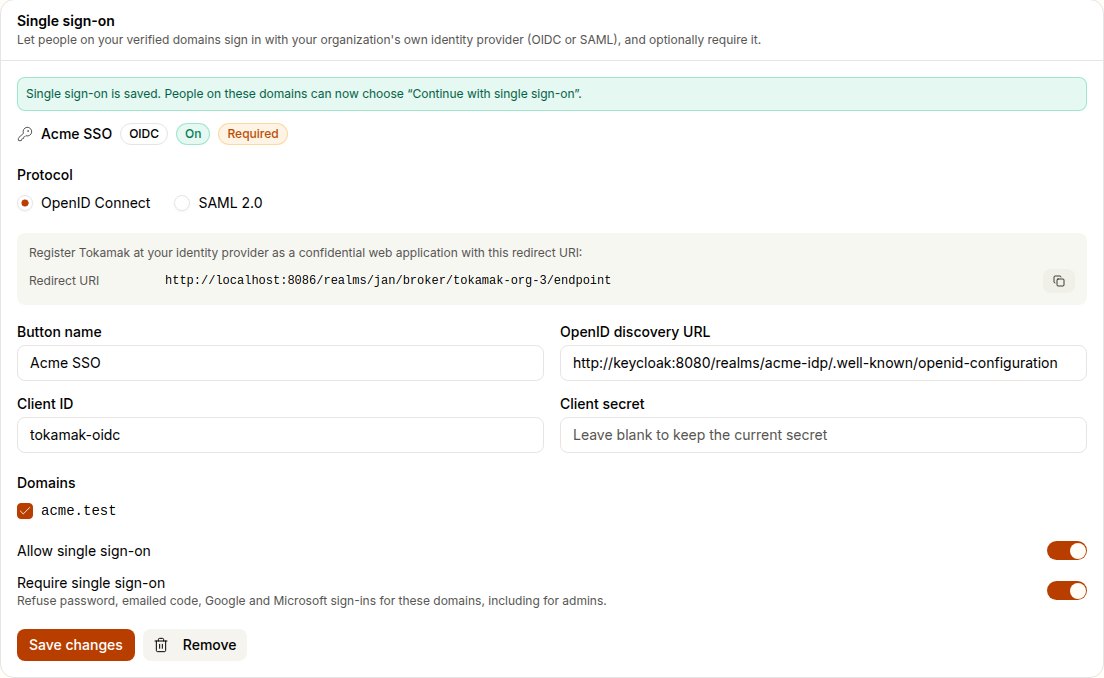
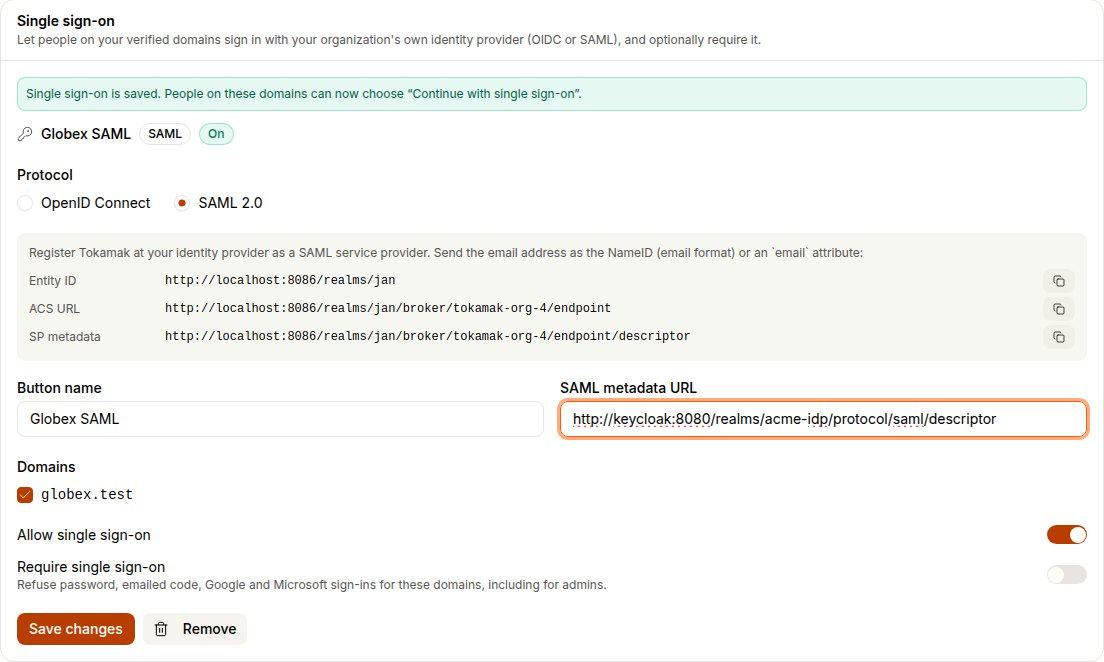
The metadata URL must be reachable over https from the public internet. Tokamak fetches it itself and refuses private and internal addresses; if your identity provider lives on a private network, ask your Tokamak operator to allow its host. The client secret is stored only in the sign-in service and is never shown again. Leave it blank when editing to keep it. Each organization has one connection, and a domain can be served by one connection only.
How people sign in
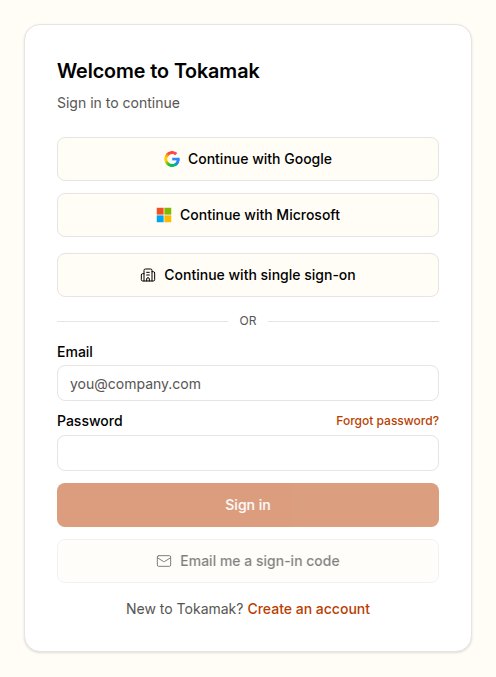
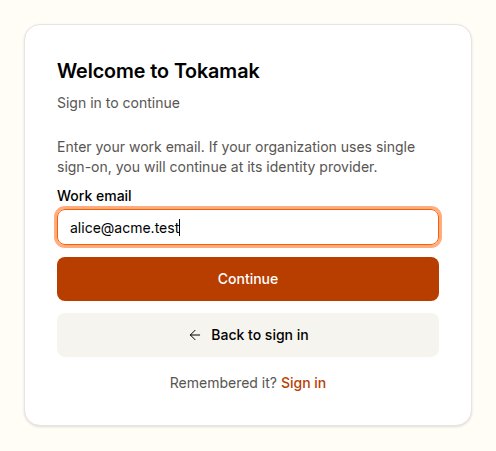
On the sign-in page, people choose Continue with single sign-on, enter their work email and select Continue. Tokamak finds your organization's connection from the domain and sends them to your identity provider, with their address already filled in.
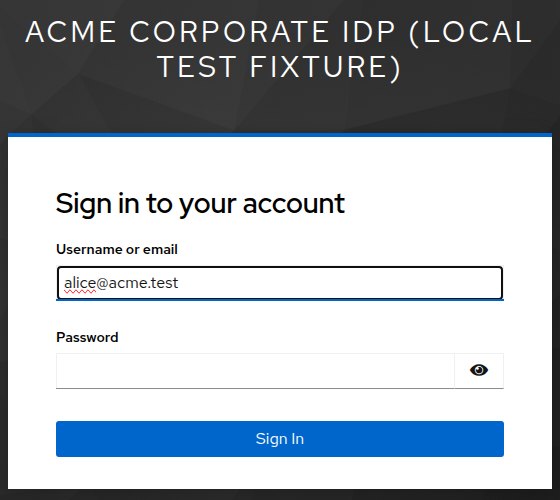
After signing in at your provider, a new person gets their personal account and, if auto-join is on for their domain, a membership in your organization, exactly as with any other sign-in.
Your provider can only sign in your domains
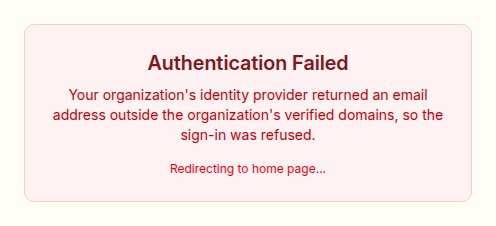
Tokamak accepts an address from your identity provider only if it is on one of the domains the connection covers. If the provider returns any other address, the sign-in is refused and no Tokamak account is created or changed. The rule also holds if that identity later tries another sign-in method, even after the connection is removed. This stops one organization's provider from signing in as someone else's employee.
Require single sign-on
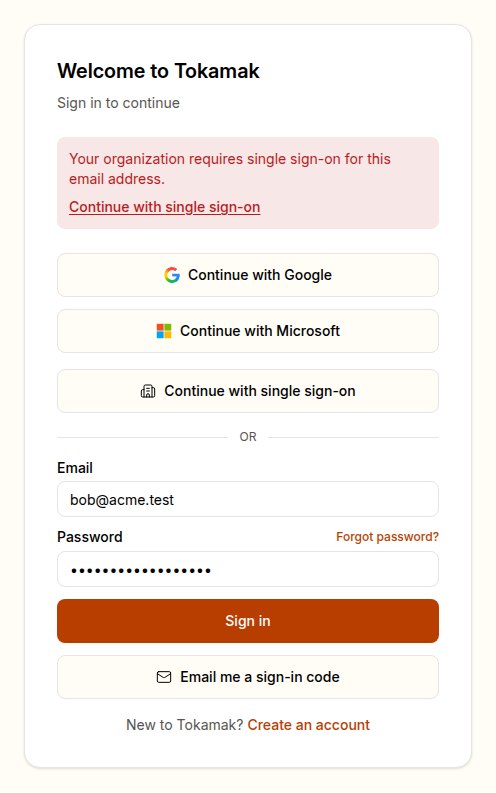
Turn on Require single sign-on to make your identity provider the only way in for the covered domains. Password, emailed code, Google and Microsoft sign-ins are refused for those addresses, and sessions people started with them stop working. Anyone who tries is offered Continue with single sign-on instead.
The requirement applies to your admins too. Test a sign-in through your provider before turning it on. If your provider later becomes unavailable, contact Tokamak support to switch the requirement off.
Requiring single sign-on governs sign-in. API keys members already issued keep working until they are revoked, the member is removed or suspended, or (if your operator runs directory sync) the account is disabled in your directory.
Change or remove the connection
- Save changes updates the connection. Switching between OpenID Connect and SAML replaces the provider, and people link it again at their next sign-in.
- Allow single sign-on off keeps the settings but stops the button from offering your provider.
- Remove deletes the connection. People who signed in through it keep their accounts and memberships, and use another sign-in method. Their addresses must still be on the domains the connection covered.
- Removing a verified domain also removes it from the connection. A connection left with no domains switches off.